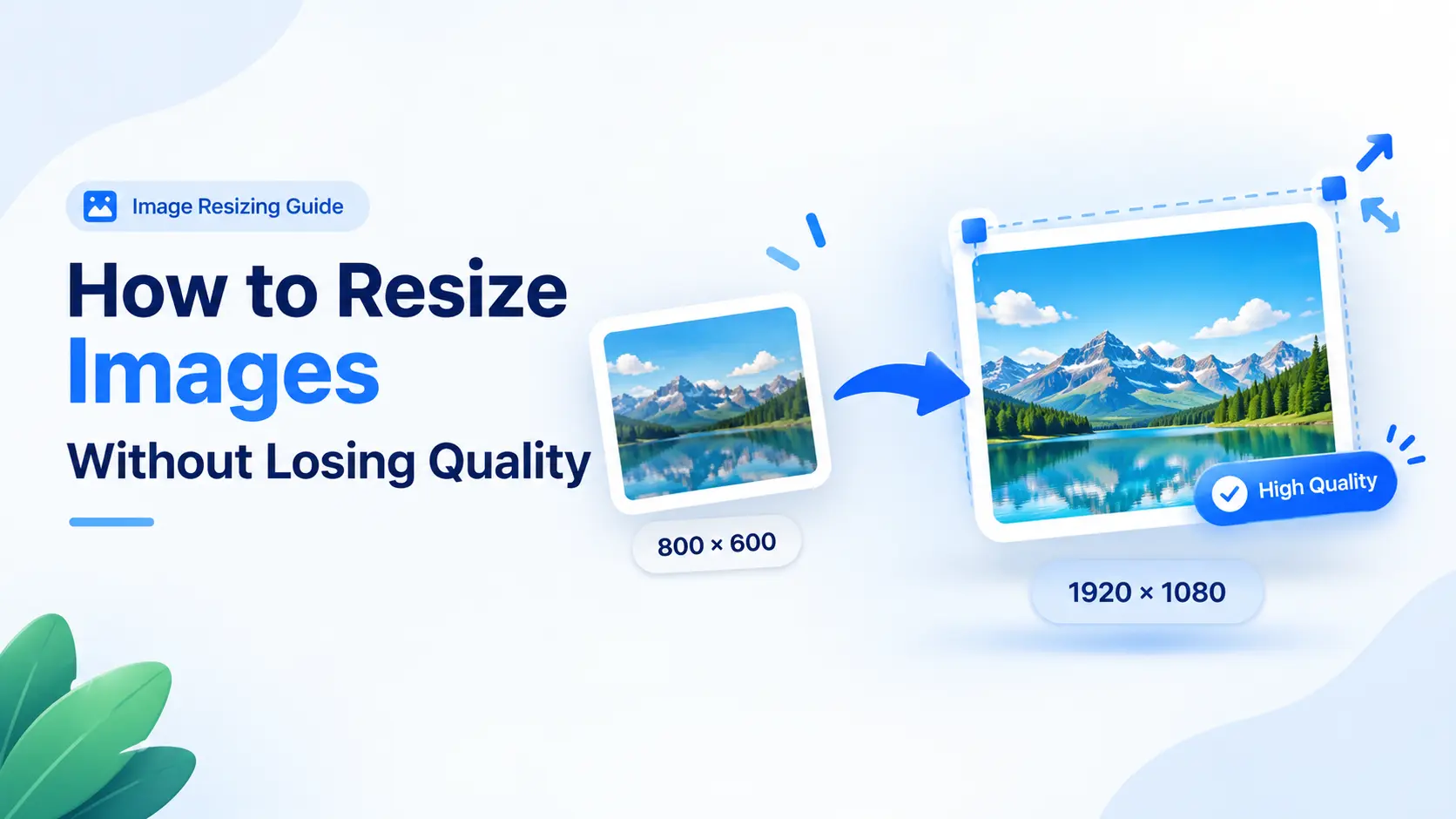
Image resizing basics
How to Resize Images Without Losing Quality
Learn how to resize photos cleanly by choosing the right dimensions, aspect ratio, format, and quality settings before you download.
Read the guide →
Change image dimensions online for free. Resize by pixels, percentage, physical print DPI, or social media presets with instant in-browser processing.
or drop, paste from clipboard (Ctrl+V), or click to browse
The image resizer offers multiple resize modes for every possible need. Pick the method that matches your exact use case.
Enter an exact width and height in pixels, centimeters, inches, or millimeters. Lock aspect ratio to scale proportionally or set custom DPI for razor-sharp print output.
Scale an image up or down by a percentage from 1% to 500%. This method strictly preserves the original aspect ratio and works ideal for quick proportional scaling.
Select a predefined ratio such as 16:9, 4:3, 1:1, or 9:16. The tool automatically adapts the canvas to fit the selected ratio with your choice of crop, stretch, or bar fill.
Resize to common screen widths with a single click. Choose from Email (768px), Desktop 4K/1080p, Laptop, iPad, or Mobile display configurations.
Pick the platform and post type. The image resizer applies official target dimensions automatically for Instagram, Facebook, X, Pinterest, LinkedIn, and TikTok.
Convert formats simultaneously during resize. Export between JPG, PNG, WebP, GIF, BMP, and ICO with optional target file size limiting (e.g. keep under 200 KB).
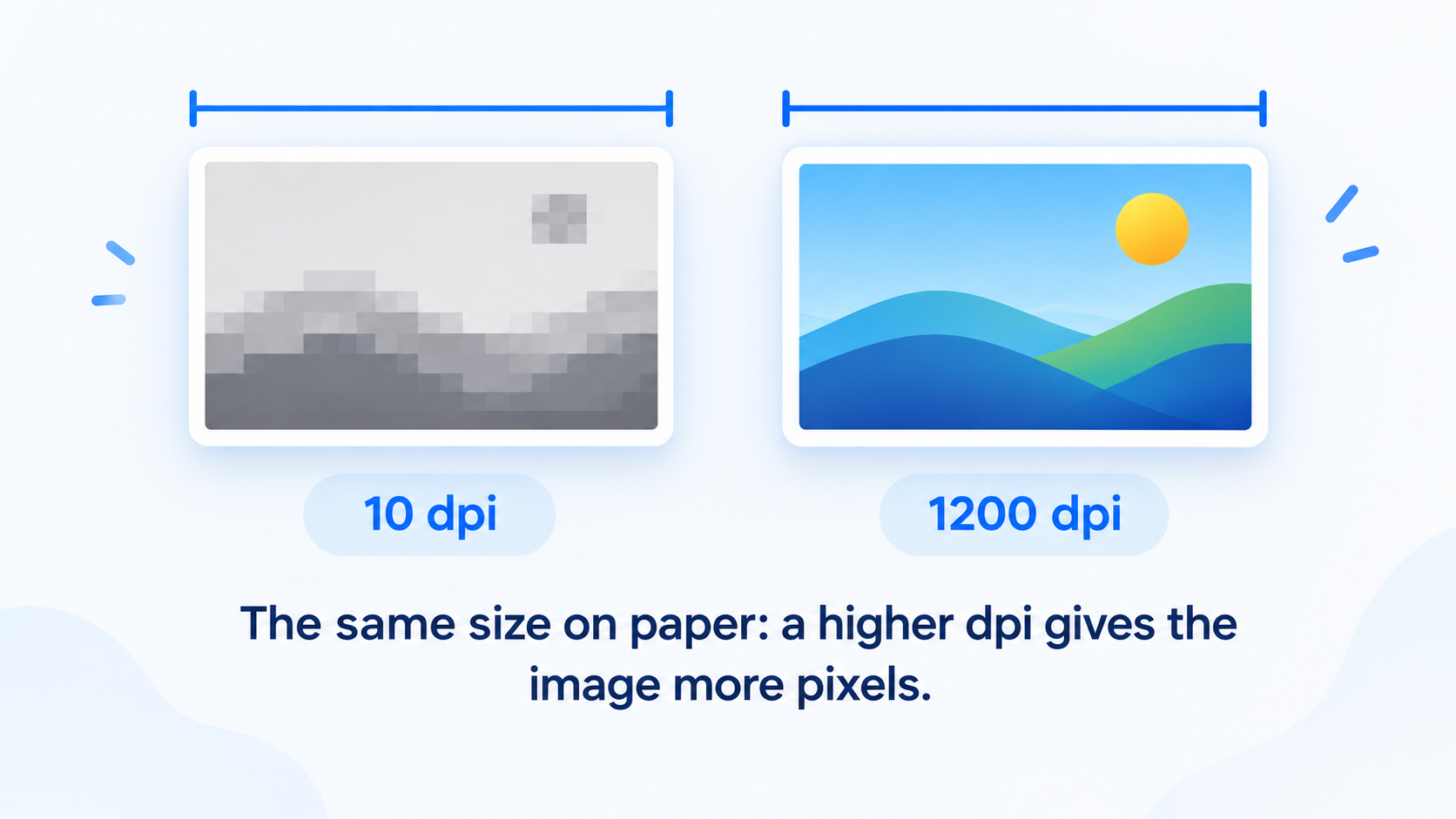
The image resizer works as a resolution changer and DPI converter in one tool. Switch between pixels, centimeters, inches, and millimeters with custom DPI from 10 to 1200.
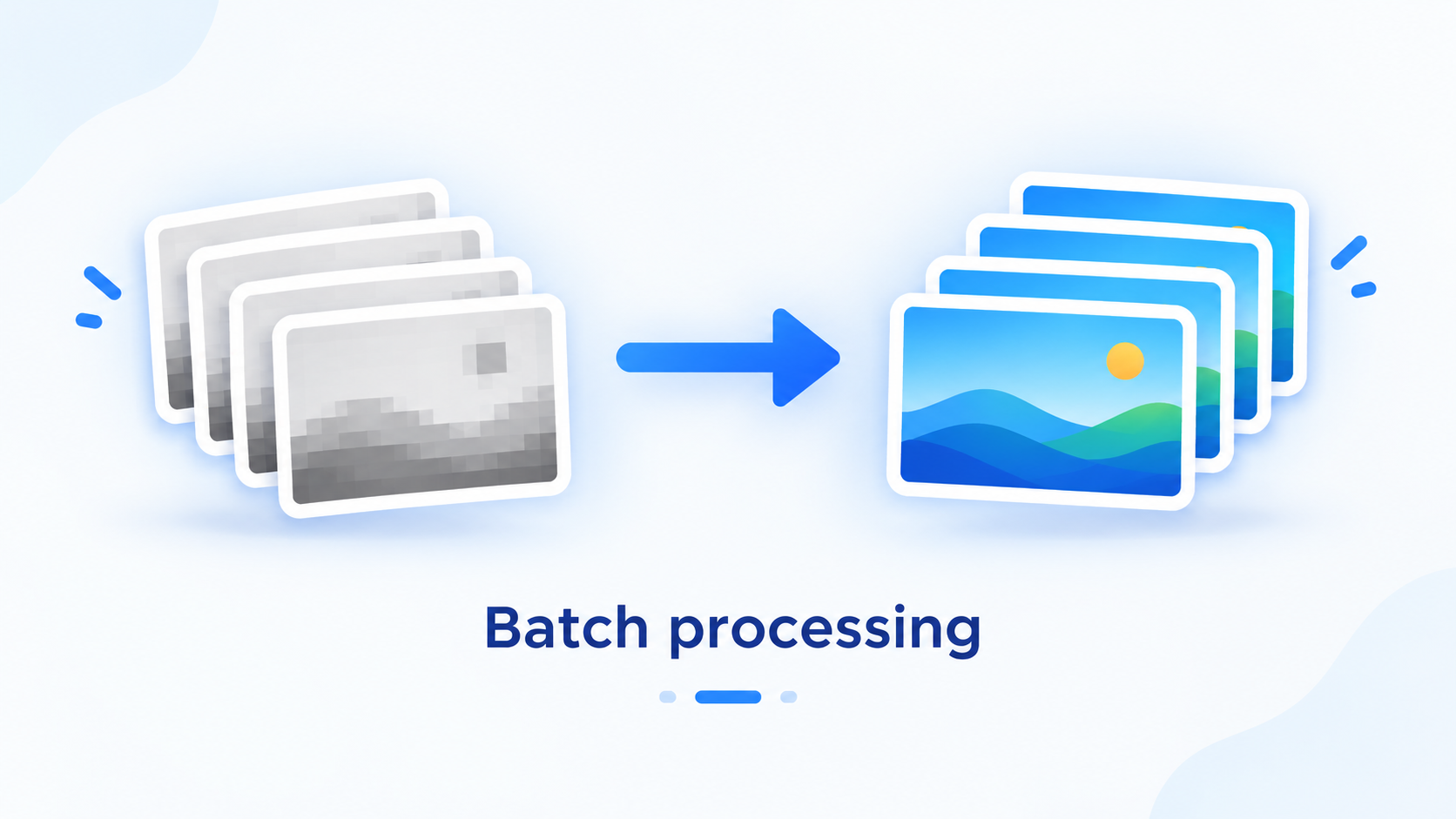
Upload multiple photos and resize them all concurrently with matching settings. The batch engine operates completely within client-side browser memory, eliminating tedious upload waiting times.
When the target dimensions do not match the original aspect ratio, our resizer gives you 6 professional handling options.

Fills target box completely, trimming excess borders with focal alignment.
Forces the image into exact dimensions without cropping, distorting proportions.
Fills remaining letterbox space with a soft, ambient blurred replica of the image.
Preserves entire photo inside the frame and letterboxes with clean white margins.
Preserves entire photo inside the frame and letterboxes with sleek black borders.
Fast, intuitive, and private resizing directly from your browser in three easy steps.
Drag and drop your file, paste from clipboard, or click browse. The image resizer accepts JPG, PNG, GIF, BMP, WebP, TIFF, and SVG.
Pick a mode: exact dimensions, scale percentage, aspect ratio, device display, or social media preset. Set your target size and fit handling.
Inspect the live Before/After comparison slider and click Download. Your original file stays untouched and no files ever leave your device.
Practical answers for better dimensions, sharper exports, faster websites, and cleaner social media images.
Learn how to resize photos cleanly by choosing the right dimensions, aspect ratio, format, and quality settings before you download.
Read the guide →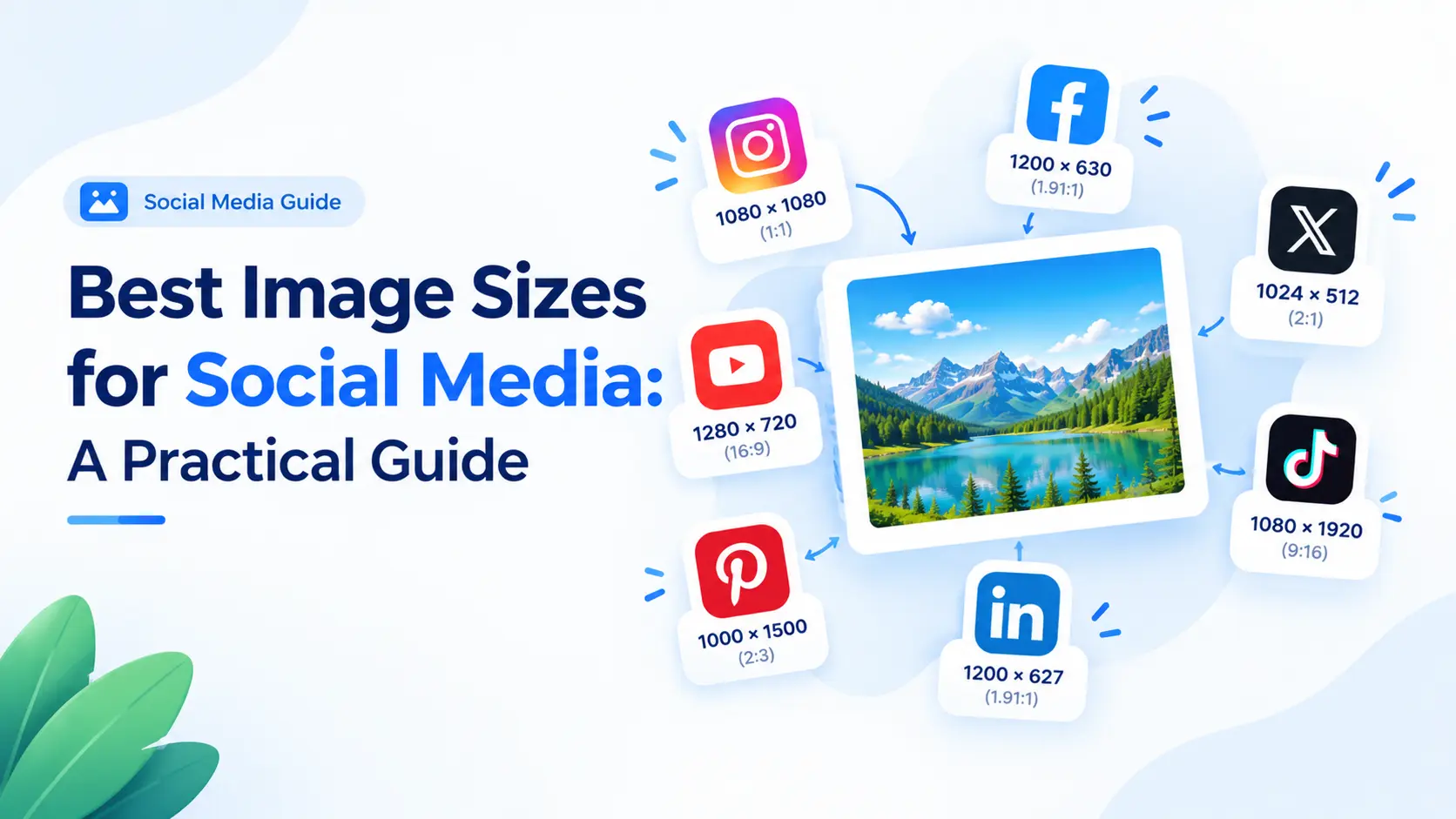
Prepare clear social posts with practical image dimensions for Instagram, Facebook, X, YouTube, Pinterest, LinkedIn, and TikTok.
Read the guide →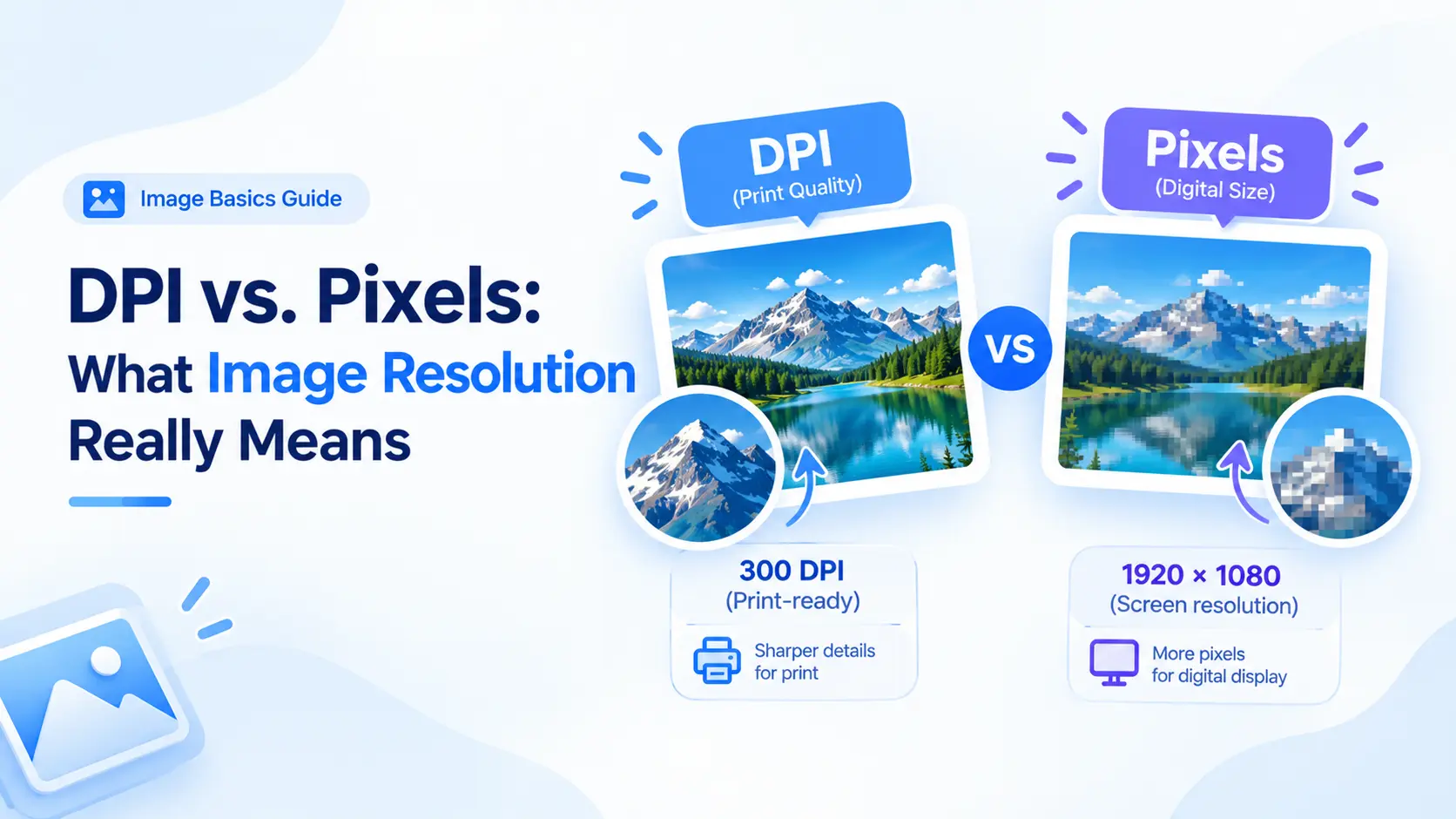
Understand the difference between pixel dimensions, DPI, and physical print size so photos look sharp on screen and paper.
Read the guide →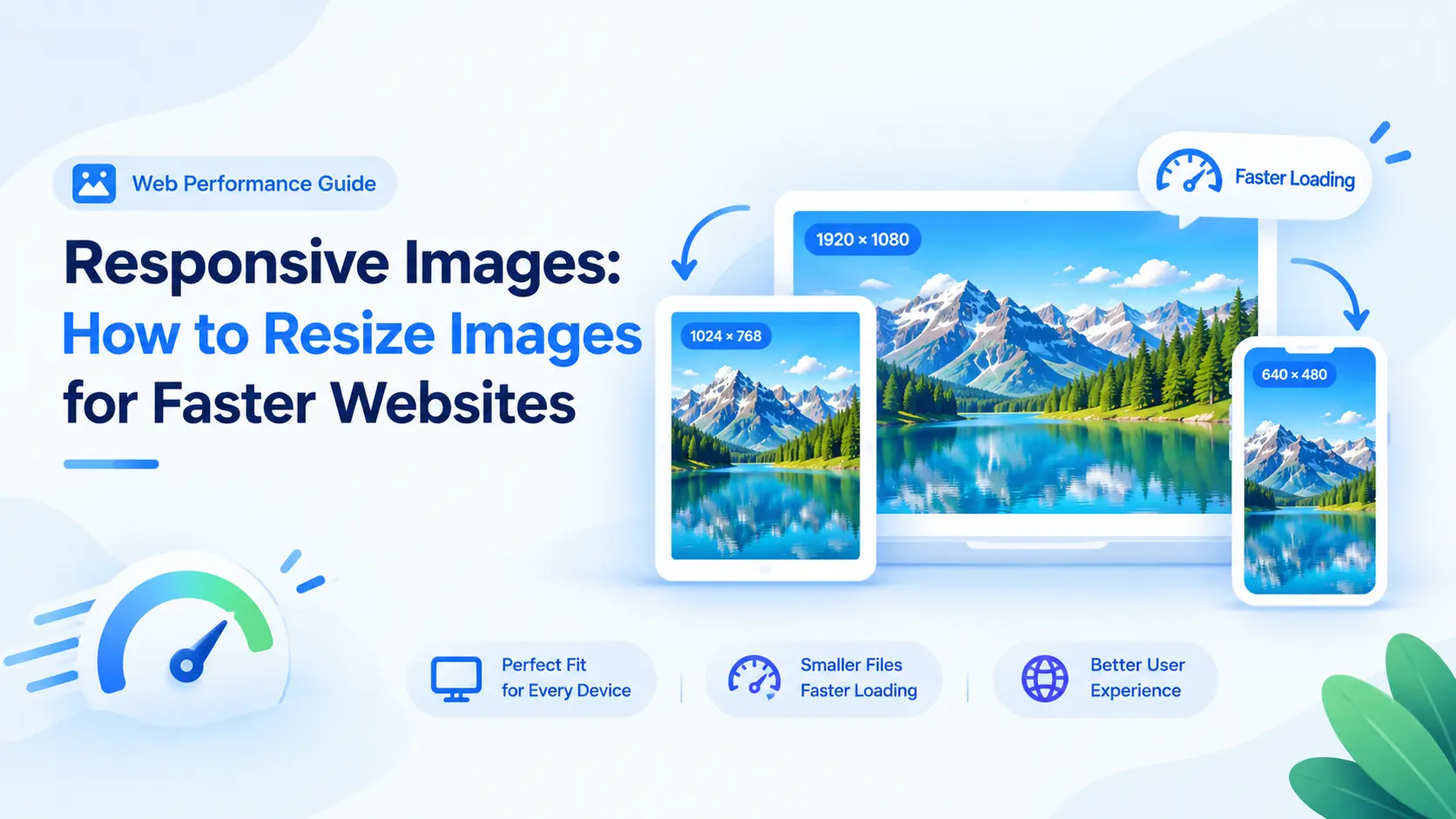
Learn how to prepare responsive image files with the right dimensions, aspect ratios, formats, and HTML hints for every screen.
Read the guide →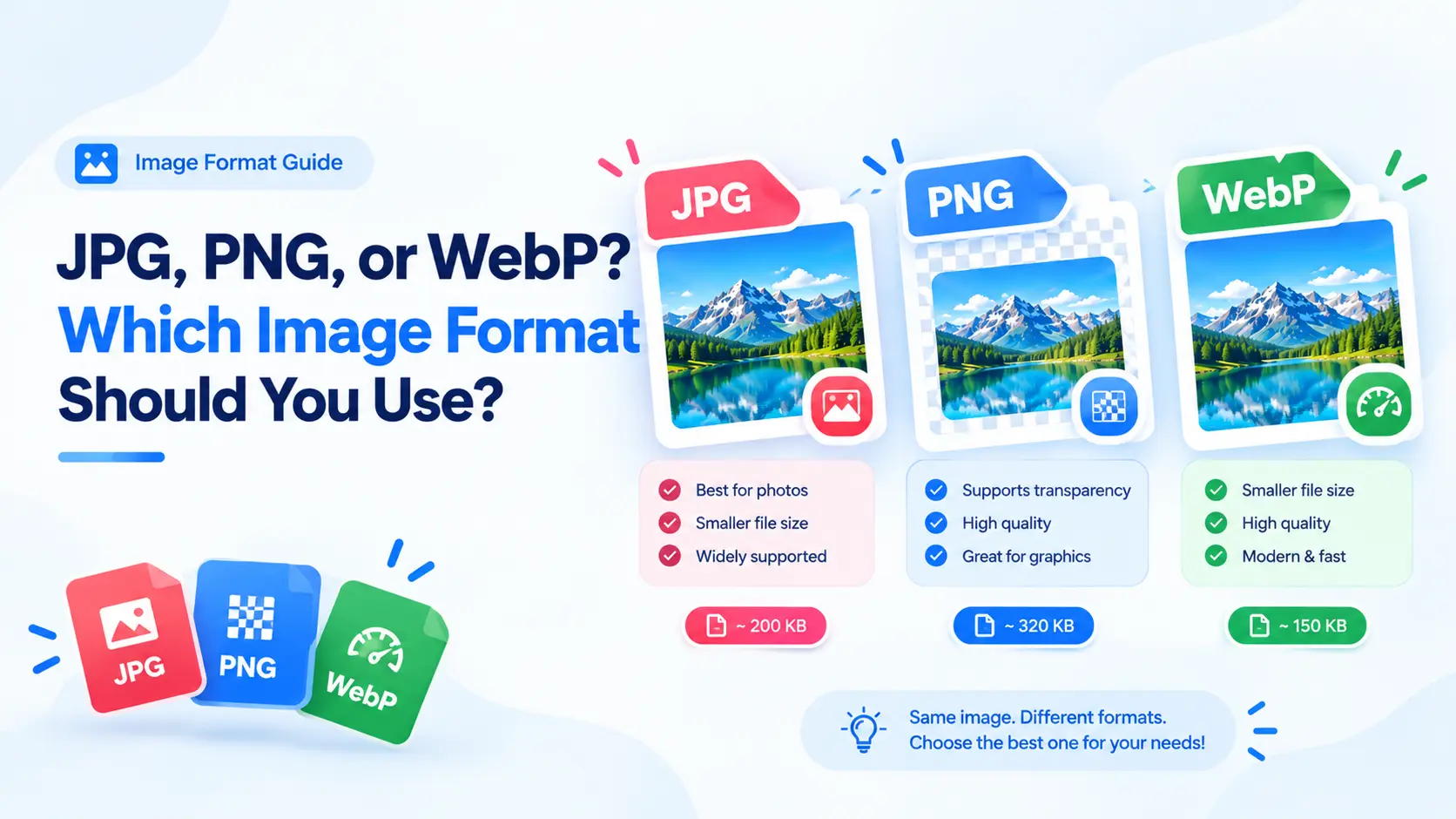
Choose the right export format for photos, transparent graphics, screenshots, and websites with this practical format guide.
Read the guide →Everything you need to know about resizing images in the browser.
ImageResizer Pro was engineered with a clear mission: to provide a modern, lightning-fast, and completely private image resizing platform that runs entirely in your web browser.
Unlike legacy web converters that force users to upload sensitive personal or commercial photos to remote cloud servers, our architecture leverages modern HTML5 Canvas 2D, WebAssembly, and multi-threaded client execution.
For suggestions or inquiries, reach out to us at email@gmail.com.
The information and utilities provided by ImageResizer Pro are offered on an "as-is" and "as-available" basis for personal, educational, and commercial image preparation.
Client-Side Processing Notice: Because all image manipulation, conversion, and compression occurs exclusively on your local client hardware, the operators of this website never have access to, control over, or possession of any image files you process.
Your privacy is our primary engineering principle. ImageResizer Pro was intentionally developed with a Zero-Data Retention Architecture:
Have questions, feature suggestions, or need help? You can contact our team directly at the official support address below:
We typically review and respond to inquiries within 24–48 business hours.
Resize Images for Social Media
Prevent blurry compression or unwanted automatic cropping with built-in official dimensions.
Instagram
Facebook
X / Twitter
YouTube
Pinterest
LinkedIn & TikTok