Resizing an image is simple; resizing it well takes one or two deliberate choices. Decide the final display size first, keep the original aspect ratio unless you intentionally need a crop, and export in a format that suits the image.
Start with the final use case
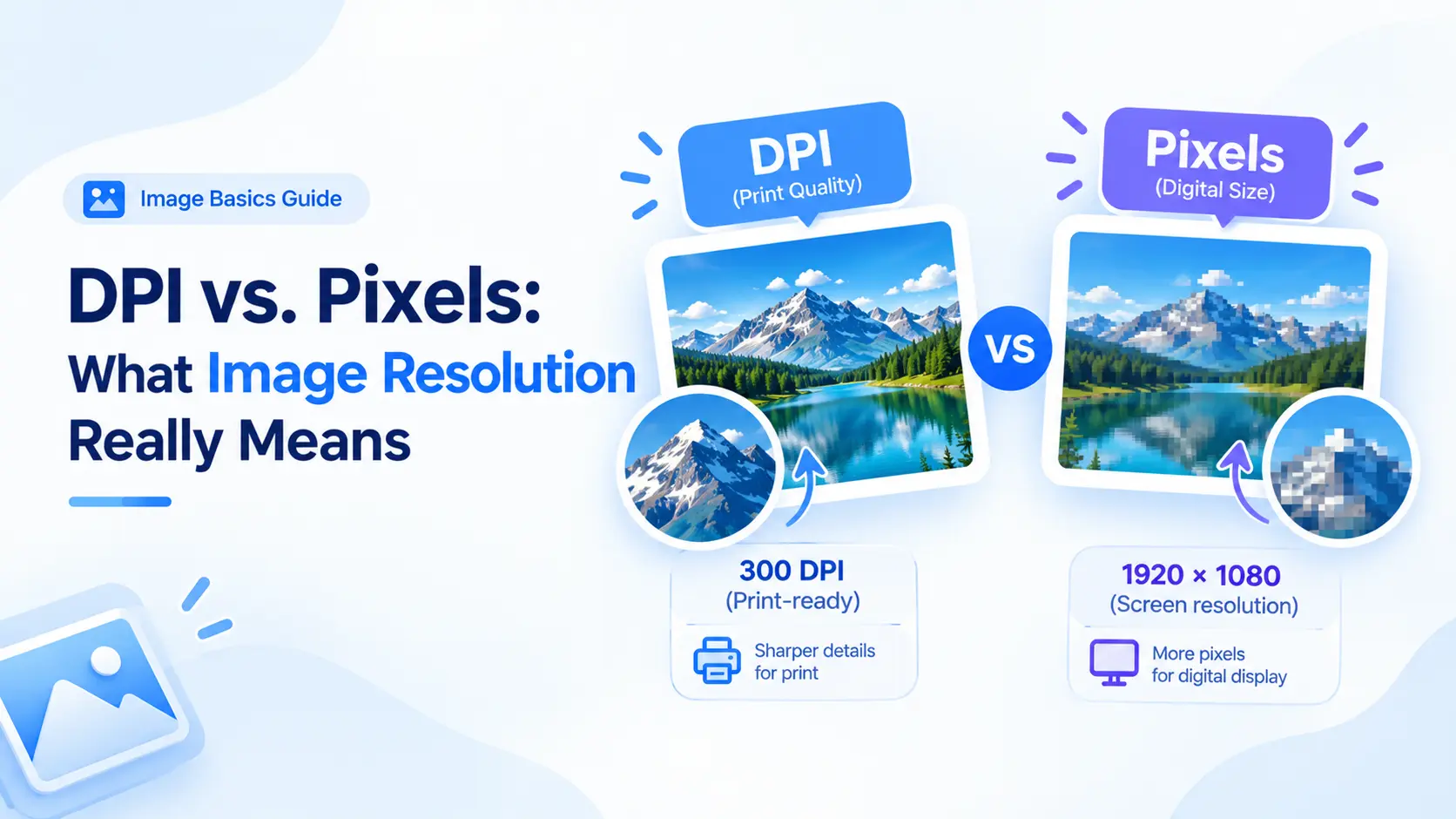
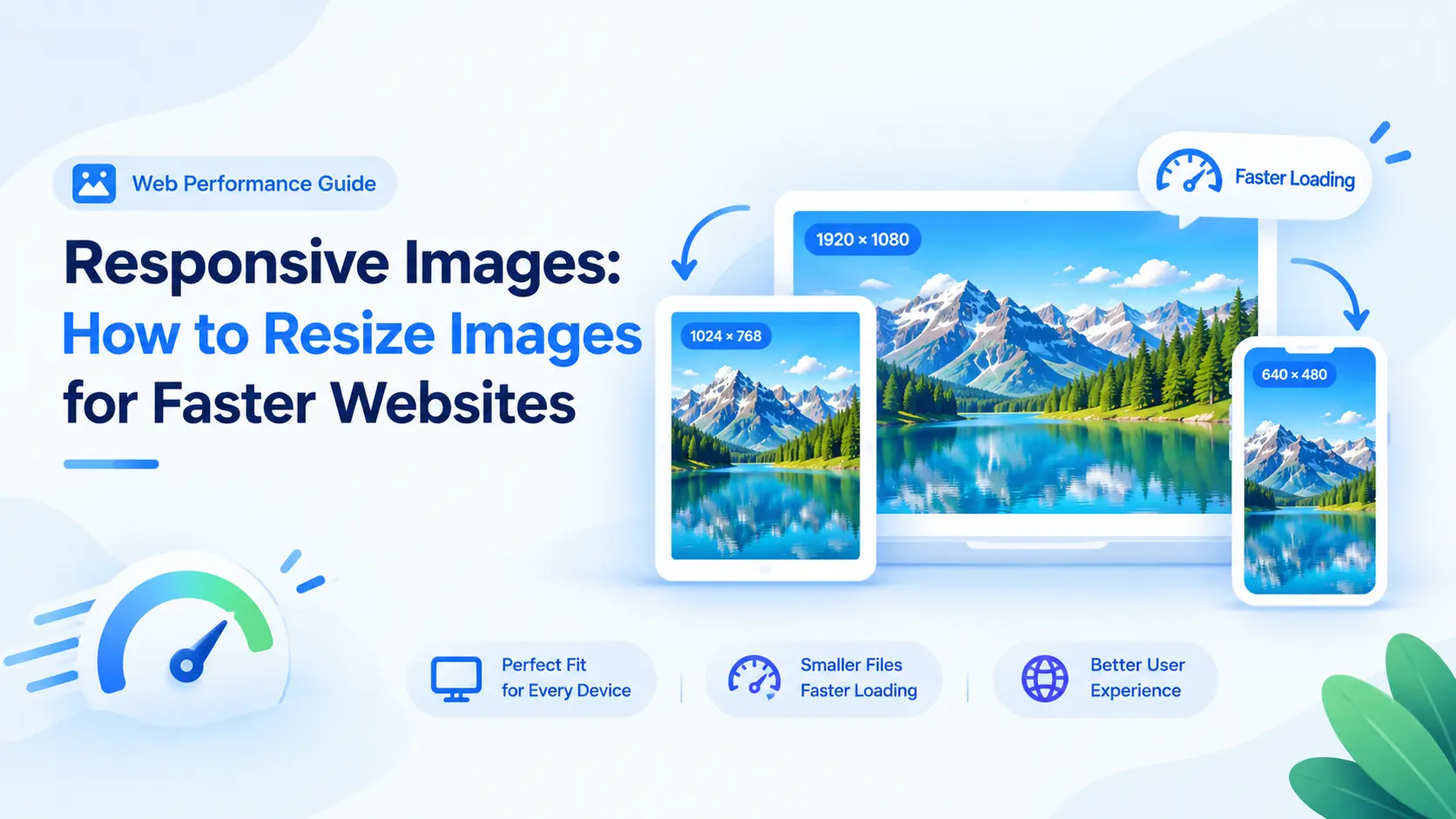
A profile avatar, website hero, email attachment, and printed flyer do not need the same dimensions. Start with the space where the image will appear. If a card is 800 pixels wide, exporting a 4,000-pixel photo adds download weight without adding visible detail for most visitors. If the image will be printed, think in physical size and DPI instead of screen width alone.
Keep the aspect ratio locked
An aspect ratio is the relationship between width and height. Locking it while scaling prevents faces, products, and architecture from looking stretched. When the target shape is different, use a crop or add bars rather than forcing the entire image into a mismatched rectangle. ImageResizer Pro lets you compare the original and resized result before downloading.
Downscaling is safer than upscaling
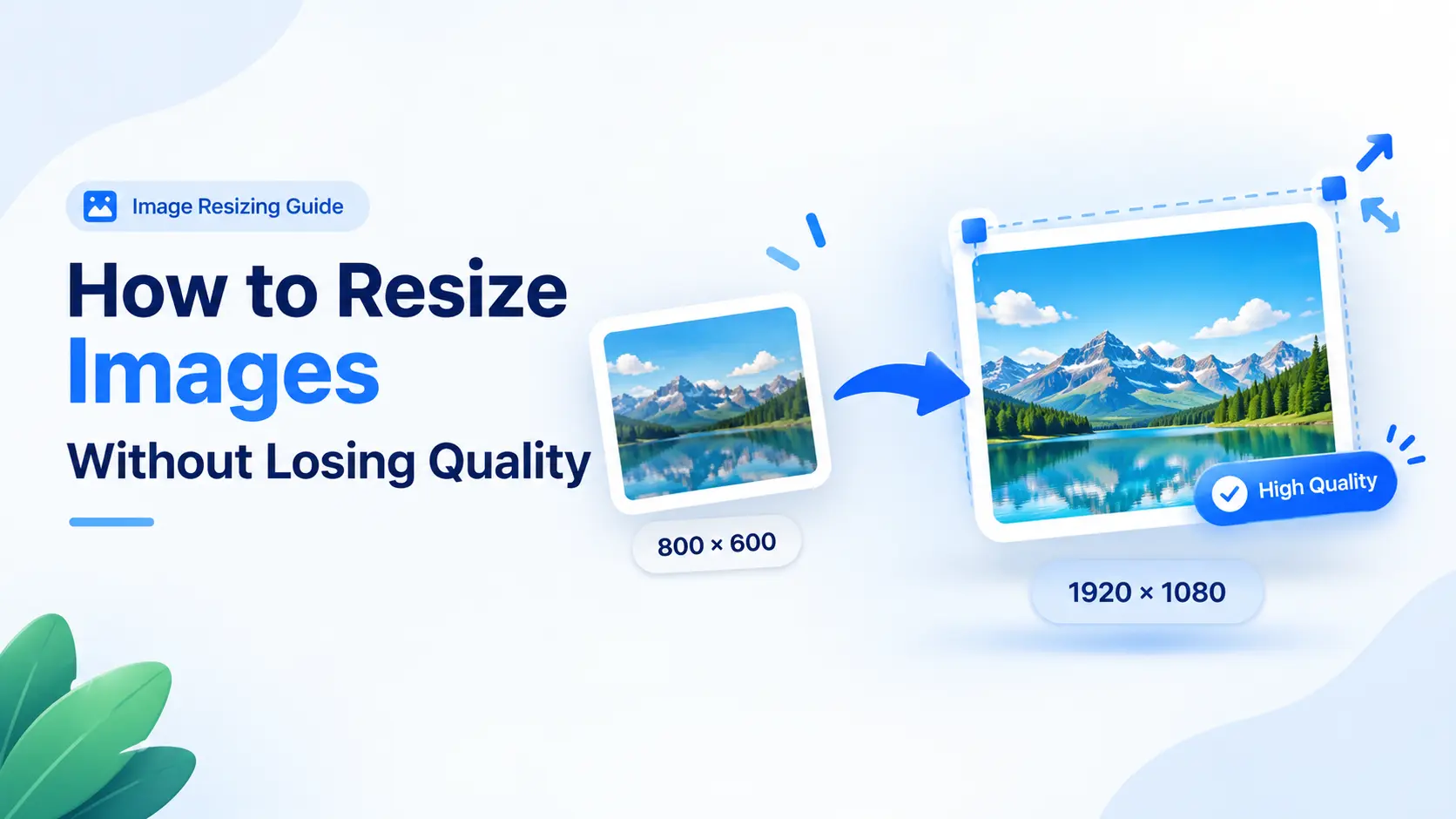
Making a large image smaller removes pixels in a controlled way. Making a small image larger asks software to invent detail that was never captured. Start with the highest-resolution original you have and avoid repeatedly exporting the same file.
Pick a suitable format
JPEG is practical for photographs. PNG is useful for transparency, screenshots, and sharp flat graphics. WebP can provide a smaller file for modern browsers. Inspect text, edges, and gradients after export because compression artifacts are easiest to notice there.
A clean workflow
Use the free image resizer to upload the original, set target dimensions, keep the aspect lock on, choose a format and quality level, then compare the preview. If you need a maximum file size, set a target in kilobytes and check the result before download.
Frequently asked questions
Does resizing always reduce quality?
Reducing dimensions can remove some detail, but a sensible output size and quality setting usually keeps the result sharp. Enlarging cannot recreate missing detail.
Should I resize before or after cropping?
Crop first when the composition needs to change, then resize the final crop. If the crop is already correct, resize directly.